A full drive is usually not one mystery file. It is often a pile of downloads, old exports, duplicated photo folders, temporary recovery folders, and backups copied more than once. The fastest cleanup workflow is: identify the biggest areas, narrow the file types, then remove duplicates safely.
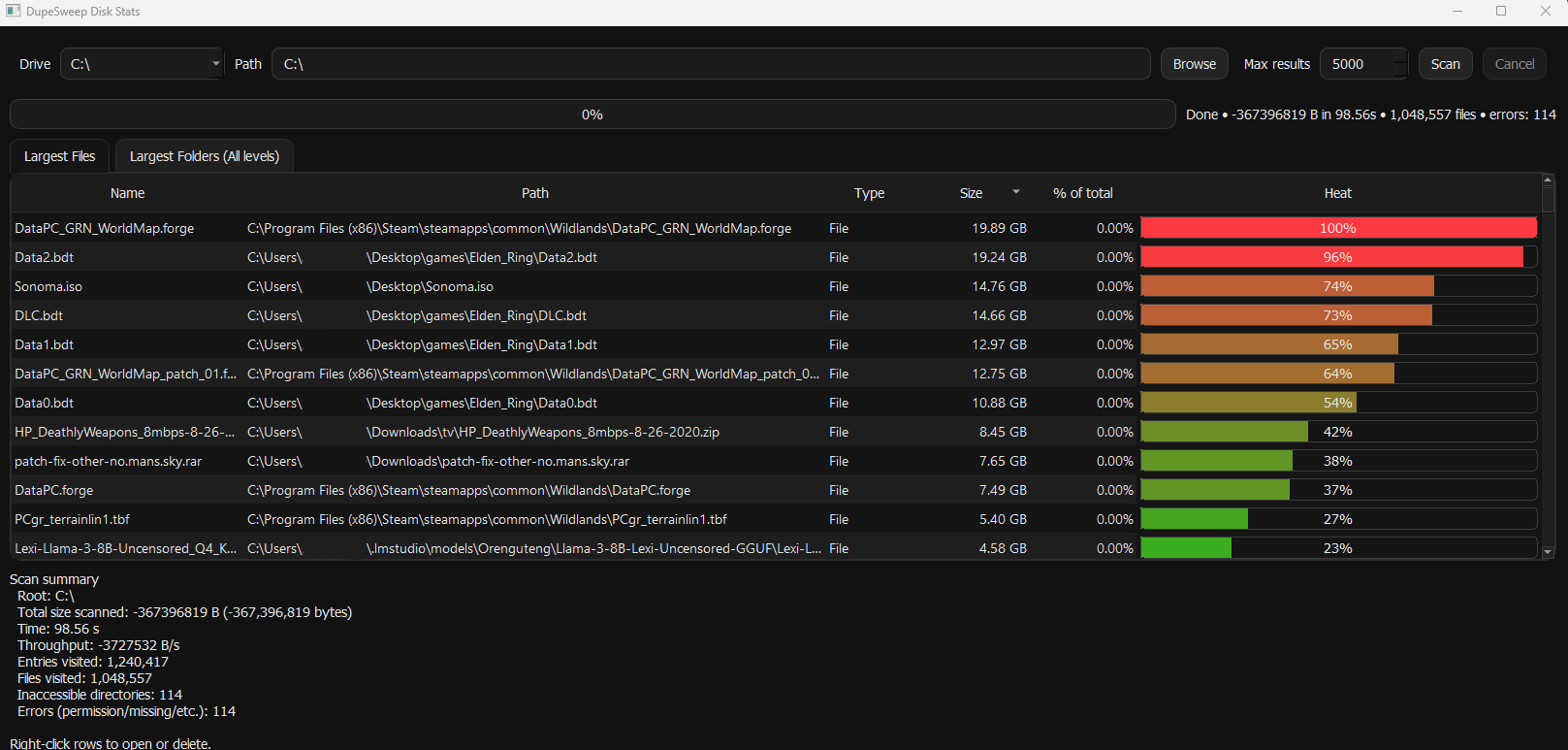
Step 1: Start with a disk map, not a duplicate scan
If you jump straight into duplicate scanning, you may waste time scanning folders that barely matter. Use Disk Stats to find the highest-impact folders first: downloads, desktop dumps, external drives, recovered files, NAS shares, old backups, and media folders.
Step 2: Look for file categories that balloon quickly
Videos, RAW photos, ZIP/RAR archives, virtual machines, APK decompile folders, installer caches, and phone import folders are usually worth checking first. DupeSweep lets you include or exclude file types so you can focus on what actually matters.
Find huge directories before scanning everything.
Include or exclude images, video, archives, apps, and more.
Save findings for review or client cleanup work.
Step 3: Clean duplicates only after you understand the drive
Once you know where the space is going, scan that location for duplicates. Free users can review and delete manually. Pro users can bulk delete and use Rescue Center so removed files can be restored back to their original location.
When Disk Stats is enough
If one folder is obviously the problem, you may only need to move, archive, or delete that folder. If the problem is copied backups, repeated photo imports, recovered files, or media libraries, duplicate scanning becomes the next step.