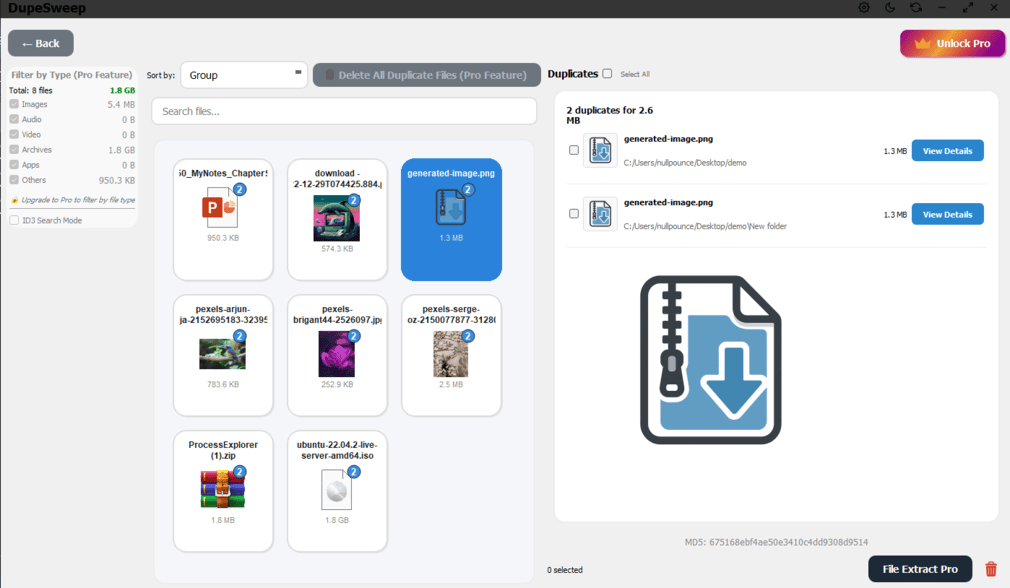
DupeSweep compares files locally and groups confirmed duplicates so you can review paths, file sizes, previews, and delete options before removing anything. The safest cleanup is to scan the right location, review the results, then delete only the copies you are comfortable removing.
Scan a whole drive
If you want to scan an entire drive such as E:, check the main drive once. You do not need to open every folder inside that drive. DupeSweep scans through the checked drive and its subfolders automatically.
- Open DupeSweep and go to the drive or folder selection area.
- Check the main drive you want to scan, such as
E:. - Leave the subfolders alone unless you only want to scan one smaller location.
- Click Start Scan and wait for the scan to finish.
- Review the duplicate groups before deleting files.
Scan one specific folder
Use a folder-only scan when you already know where the duplicates are. This is best for folders such as Downloads, Pictures, a copied backup folder, a recovered files folder, or E:\Users\rob\Documents\Outlook Files.
- Click the yellow folder/browse button to choose a folder manually.
- Select the exact folder you want to scan.
- Do not select the whole drive if you only need that one folder.
- Start the scan and review the results.
Choosing one folder is also the best option when you remove file-type limits in Settings, because DupeSweep may scan many more files when all file types are allowed.
Scan Outlook PST files or other special file types
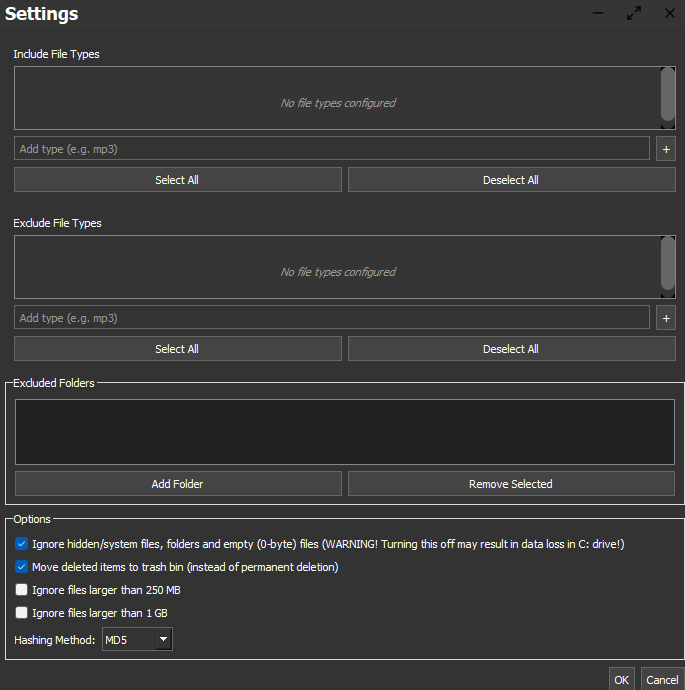
Outlook data files usually use the .pst file extension. If you are trying to compare PST files and the scan does not appear to start, check your Settings first. A file-type filter can prevent certain file types from being included.
- Open Settings.
- In Include File Types, use Deselect All or clear the include list so DupeSweep is not limited to only certain extensions.
- Click OK to save the Settings change. Closing the window without OK may not save the change.
- Use the yellow folder/browse button to choose only the
Outlook Filesfolder. - Start the scan again.
Why a scan may finish with no results
A scan can finish quickly or show no duplicate groups when there are no matching duplicate files to display. That does not mean you need to expand every folder manually.
No duplicate candidates
If the selected folder does not contain files with matching sizes or matching content, there may be no duplicate groups to show.
0-byte files
Empty 0-byte files are ignored by default because they do not contain useful content to compare. If a location mainly contains empty files, there may be nothing to scan.
Filters are active
Include types, exclude types, excluded folders, hidden/system file settings, or large-file limits can prevent files from being included.
Files are locked
Files currently used by another app may be skipped until that app is closed.
Preview and delete duplicate files
After a scan, click a duplicate group to review the files in that group. For images, DupeSweep shows a preview so you can confirm what you are deleting. For all file types, check the file paths and sizes before removing anything.
Use bulk delete with folder control
For larger cleanup jobs, DupeSweep Pro includes bulk delete options. When duplicate copies are found in multiple folders, you can choose which folder location should be kept or removed.
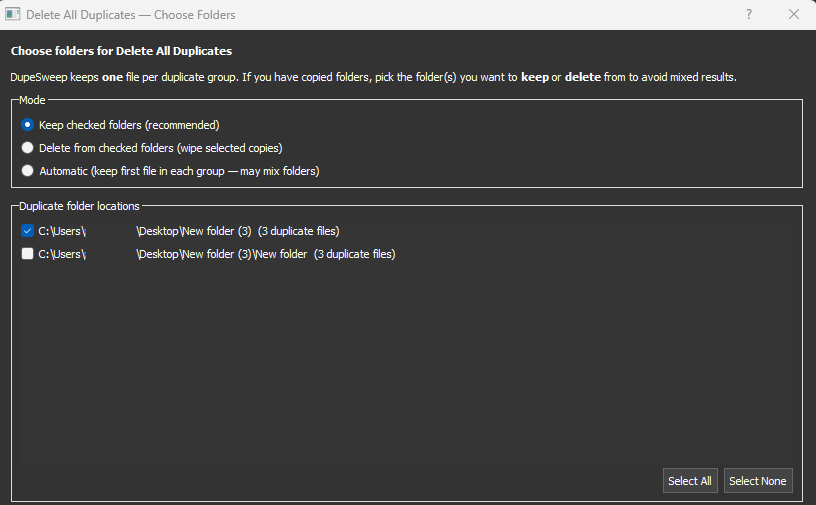
The safest option is usually to keep the folder you trust most, such as your main Pictures folder, Documents folder, or primary backup folder. Temporary folders, copied folders, downloads, and recovered-file dumps are usually better candidates for deletion after review.
Turn on Rescue Center before large deletes
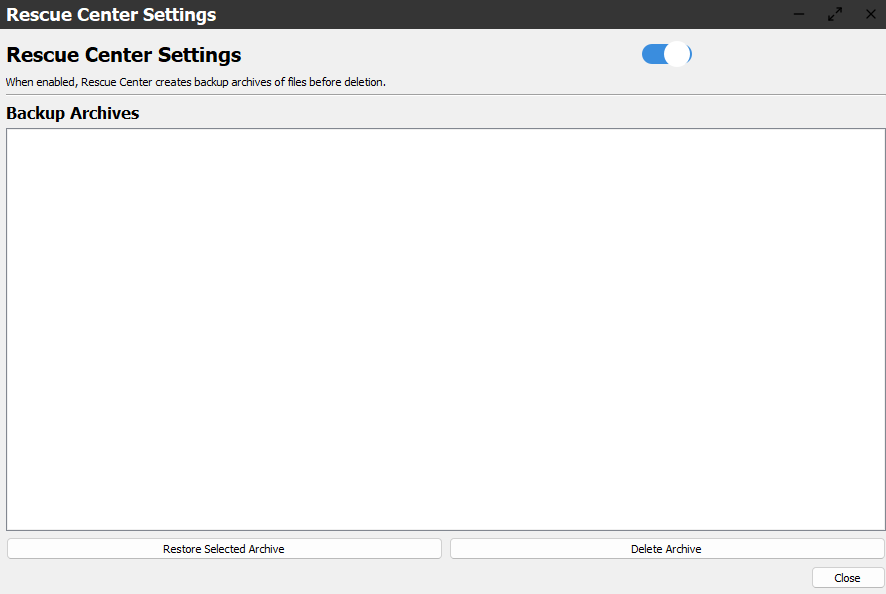
Rescue Center creates backup archives before deletion. If you need to undo a cleanup, select a backup archive and restore it. Restored files go back to their original locations.
Folder merge note
DupeSweep does not currently merge two folder trees into one. For example, if you have Dropbox and Dropbox - Copy, DupeSweep can help remove duplicate files, but remaining unique files still need to be moved into the folder structure you want to keep.
After deleting duplicates, move the remaining unique files manually. If Windows asks how to handle a file that already exists, choose a safe option such as Skip or Compare files unless you are sure you want to replace the existing file.
Disk Stats errors
Disk Stats may report errors when Windows blocks access to protected folders, system folders, locked files, or locations used by Windows services. This is common on Windows and usually safe to ignore if the scan still completes and shows your largest files and folders.
Recommended safe cleanup workflow
- Start with a specific folder when possible.
- Clear or adjust file-type filters only when needed, then press OK.
- Scan, then review duplicate groups by path and preview.
- Enable Rescue Center before deleting many files.
- Use bulk delete only after choosing which folder should be kept.
- Export results first if you want a record of what was found.
Privacy
DupeSweep is designed for local cleanup. Your files do not need to be uploaded to a cloud service for duplicate scanning, previews, bulk delete, Rescue Center, or Disk Stats.