macOS duplicate cleanup is usually less about system files and more about human folders: Downloads, Desktop, Photos exports, ZIP archives, AirDrop, old backups, and external drives.
Step 1: Start with user folders
Scan folders you actually use first. Downloads, Desktop, Documents, Pictures, external drives, and exported project folders are usually better targets than the entire Mac drive.
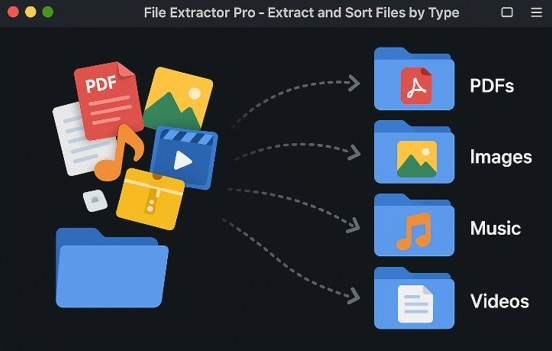
Step 2: Sort messy folders by type
When a Mac folder is full of mixed files, use a file type sorting workflow first. Copying files into image, archive, document, app, video, and audio buckets makes the next cleanup step easier.
DownloadsSort by typePreview duplicatesKeep originalsRemove copies
Step 3: Watch for common duplicate sources
- Repeated ZIP extractions.
- Photo exports from editing apps.
- AirDrop copies.
- External drive migrations.
- Backup folders copied to the desktop.
- Installer files and old disk images.
Step 4: Keep deletion reversible where possible
Use Trash or a recovery-friendly delete workflow. For large jobs, prioritize tools that support previewing and restoration instead of permanent blind deletion.
Mac download: DupeSweep is available as a direct macOS ZIP build, with Microsoft Store, MSIX, and EXE options for Windows users.